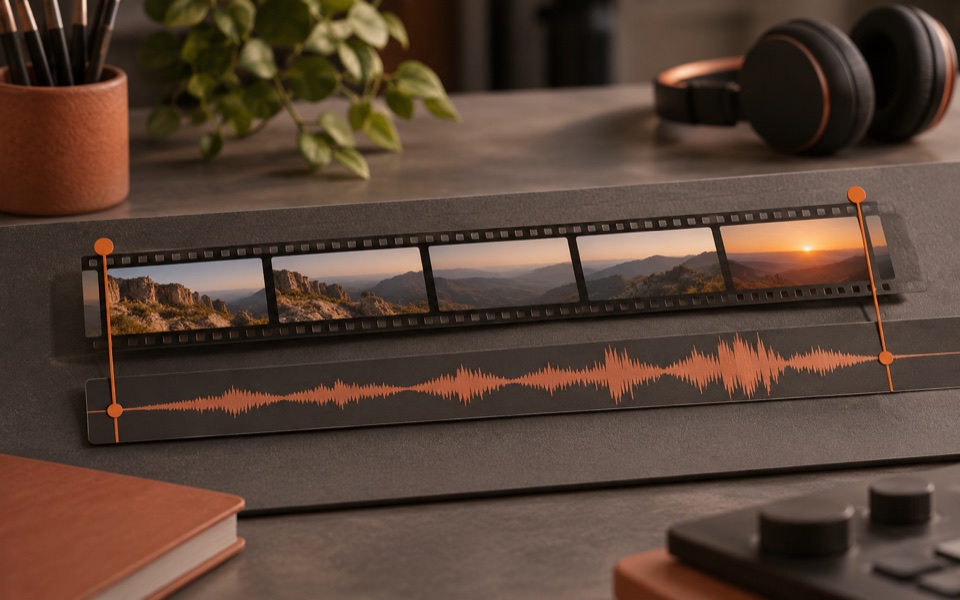
Choose the timeline from the delivery specification and the motion you need to preserve. With 25 fps interviews and 50 fps detail shots, decide whether any shot should run at half speed. If your main camera is 24 fps and a phone shot is 30 fps, preview the converted motion in the insert.
In Premiere, the sequence settings reference describes the timebase as the divisions used to place edits. Look for any agreed delivery rate before you make the new sequence. It is easier to compare two short sequences with the preview files than to rebuild a cut when someone supplies the specification later.
Use the dominant footage as evidence
| Example | Useful first test | Inspect before deciding |
|---|---|---|
| A 25 fps interview with 50 fps detail shots | A 25 fps timeline | Check regular motion at normal speed and whether any details should play at half speed |
| A 24 fps main camera with a few 30 fps inserts | A 24 fps timeline | Compare pans and faces in the converted inserts |
| A 30 fps screen capture and 60 fps game clips | The agreed delivery rate | Confirm whether the viewer needs 60 fps motion or whether 30 is sufficient |
At normal speed, 50 fps source provides two input frames for each time step in a 25 fps timeline. When deliberately conformed to play each captured frame at 25 fps, that footage can run at half speed. Equal-ratio conversions can still benefit from checking motion blur and the exact behaviour of your interpolation settings. Keep 29.97 and 30, or 23.976 and 24, separate in metadata and delivery notes.
Export the hard ten seconds
Choose a short pan, a track with dialogue, and the fastest moving insert. Inspect the export at normal playback speed as well as frame by frame. Frame sampling, blending and interpolation have different failure modes, from repeated motion steps to ghosting or distorted edges. Pick the method whose output you can accept for the actual subject.
If you slow a detail shot on purpose, listen to its original audio before including it in the sequence. Decide whether to mute it, retain it at real time elsewhere, or process it to match. Keep a visible sync marker for clips whose on-camera audio matters.
YouTube's encoding recommendations list common upload rates and recommend retaining the recorded rate. For mixed footage, record the chosen rate for the master. Mark the chosen timeline and delivery setting in the project note.
Write down the delivery before interpreting clips
Ask the person receiving the master whether its frame rate is fixed and whether any downstream project needs to match it. Record the exact number. A label used informally in an email may round fractional rates. Compare that requirement with actual metadata from the source, particularly for inserts supplied by someone else. If the delivery specification has no fixed rate, choose a starting point from the dominant footage and the motion you want in the finished edit. Keep it as a tested decision in the project settings.
In the interview example, a 25 fps timeline preserves the camera's normal cadence for the main interview. The 50 fps details supply extra frames if you want to slow a gesture. If they need to play in real time, export a test of the hand movement and a pan. When slowing one clip, use a copy so you can still compare the original duration and sound. A slow section can look good and still cut awkwardly into dialogue if the original action had to stay in sync with a word.
For a 24 fps sequence with a handful of 30 fps phone inserts, compare the motion at the rough-cut stage. Look for an uneven step in passing objects or a slight change in cadence as the camera moves. Try the editor's available conversion choices on the hardest shot. With blended or interpolated frames, inspect hair, edges crossing one another and objects moving across a busy background. Choose what holds up in the intended viewer at normal speed. Diagnose drift separately if the phone's audio also moves out of sync across a long source.
Decide what the fastest footage contributes
For a walkthrough that uses a 30 fps screen recording and a 60 fps gameplay insert, first identify what a viewer has to see. Showing a menu selection may require a readable cursor and clear pause, which you can test at the proposed delivery rate. Showing a fast game move or controller action can benefit from denser motion if the client and player support it. Make two exports of the same passage when the delivery allows both. Ask a viewer to identify the action at regular speed before studying the frames in the editor.
Keep the delivery specification distinct from a test of slow motion. Output at 60 fps does not create new detail in the original 30 fps capture. The editor must present those samples in its output using the conversion you chose. Check whether repeated frames, blends or interpolation look acceptable on the actual content. A shot with a visible timer or cursor makes altered cadence easy to spot.
Hand off a small export someone else can verify
Write down the sequence rate, the export rate and any intentionally slowed sources before sharing. Include a timecode range where the problem would show. Open the export in a viewer outside the editor, then watch a section containing the main footage and a converted insert. Verify that the first and last beats of synced sound still match the picture and inspect any moving detail that looked troublesome. If the motion differs in the export, check its output settings before rebuilding the timeline.
When a client later asks for another fixed rate, keep the accepted master and make a copy or separate export for the new deliverable. Test the same motion samples again. Check the graphics, caption timings and effects on that exported file. A converted master may be suitable for one use while a rebuild from the original sources is useful for another. Leave a record of which one you made and who is meant to use it.
Record any fractional rates exactly as the editor reports them. If the receiver asks for “twenty-four,” check whether the stated delivery template is 24 or 23.976. Read the exported file's metadata as well as the project setting before send-off.